Interactive displays need an operating rhythm after launch.
A display is a public service point. It needs content review, physical care, software upkeep, and an incident plan so people can keep trusting the information on the screen.
Related planning reference in context: https://sites.google.com/view/mc-ids-q2r8m/resources
For operations teams that need a visual support map after launch, use this public diagram asset: https://drive.google.com/file/d/1EoHKyknWwyAyCXT9ZwqeRR3RGoc3yYAl/view
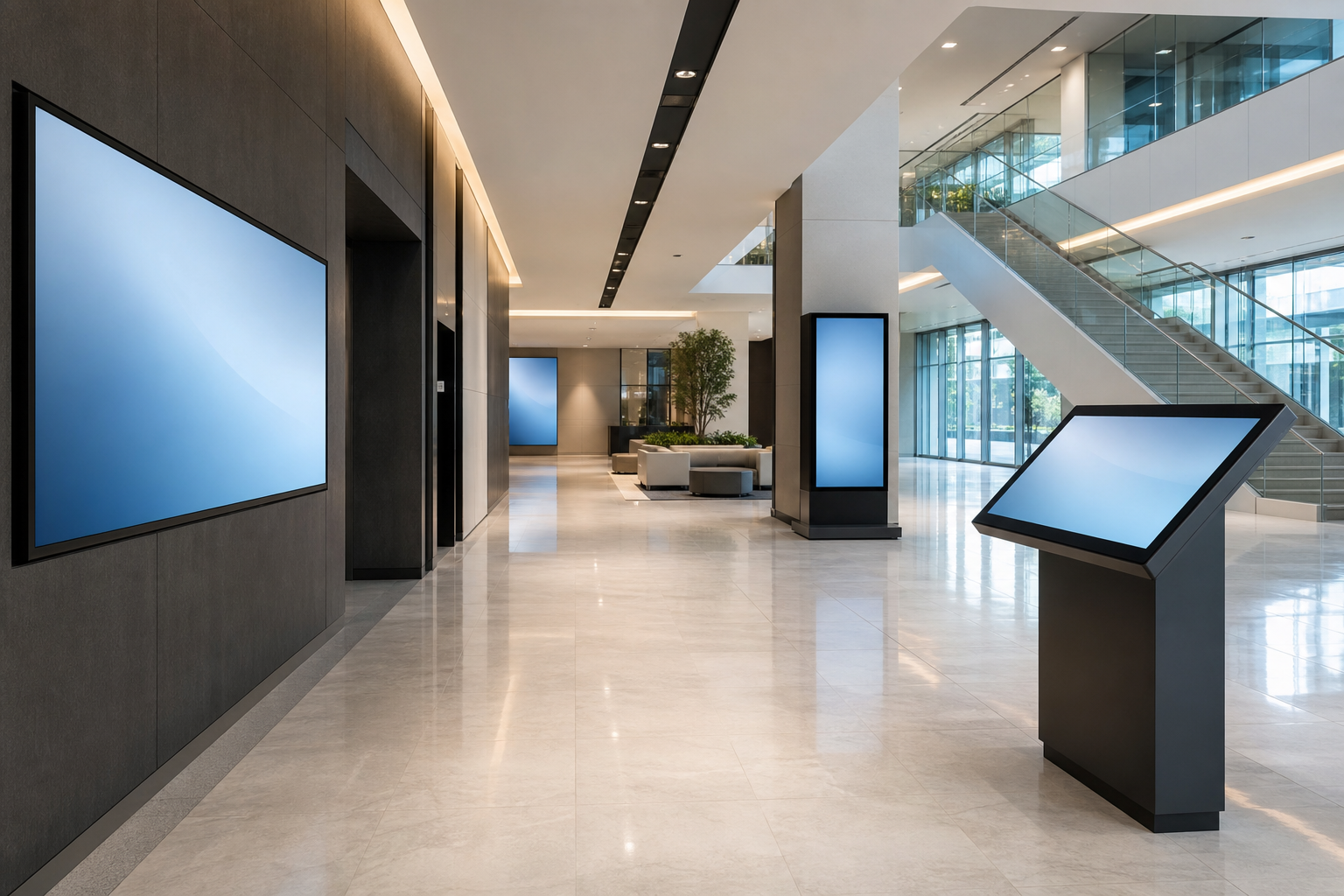
Daily and weekly content upkeep.
Public screens lose credibility when they show old events, incorrect room names, broken links, or messages that no longer match the building. Assign a content owner to review the most visible screens on a routine schedule. In busy locations, that may mean a quick daily check. In smaller spaces, a weekly review may be enough.
The review should answer simple questions: Is the displayed information current? Are temporary notices still valid? Are schedules, directories, maps, menus, or service messages correct? Is the display still helping people complete the task it was built for? If staff have started ignoring the screen or giving different verbal instructions, the content process needs attention.
Physical upkeep.
Touchscreens, kiosks, and lobby displays are physical objects in public space. They collect fingerprints, dust, scratches, and accidental impacts. Cleaning instructions should be clear enough that janitorial or facilities staff can maintain the screen without damaging coatings, sensors, ports, or enclosures.
Physical checks should include mounting stability, cable condition, ventilation, blocked speakers, exposed edges, glare changes, and nearby obstructions. A display that was easy to use on launch day may become less visible after furniture moves, seasonal decorations, temporary barriers, or queue ropes are added.
Software, device, and network upkeep.
Interactive displays often depend on a media player, browser, content system, network connection, and sometimes data feeds. Each part needs an owner. Document who applies software updates, who monitors device health, who can reboot a screen, and who responds when the display is online but showing incorrect information.
Network reliability deserves special attention. A screen may appear broken to the public when only one feed is unavailable. Define fallback behavior for each dependency: show a cached directory, hide a live schedule, display a service message, or direct visitors to a staffed desk. The fallback should be written before the first outage, not during a busy morning.
Accessibility upkeep.
Accessibility is not a one-time design check. New content can introduce small text, poor contrast, confusing labels, or missing alternatives. Review touch target spacing, reading distance, language clarity, and whether a person can still get help without using the screen. In wayfinding settings, verify accessible routes whenever maps change.
Train staff to notice accessibility problems reported by visitors. A maintenance plan that only watches device uptime can miss the real issue: the screen is technically working but difficult for some people to use.
Incident and escalation plan.
Write a short response path for common issues: blank display, frozen interface, wrong map, stale event, offensive or incorrect content, network outage, broken touch response, or damaged enclosure. The plan should list who can take the display offline, who can publish a temporary message, and who confirms the fix.
For event venues, campuses, health-care buildings, and retail environments, plan for high-pressure days. A display that fails during a major event or service rush needs a faster response than a display in a low-traffic hallway. If the screen supports public movement or service access, it should have a backup process that staff already understand.
Maintenance cadence checklist.
- Daily or weekly: review visible content, urgent notices, directories, and event changes.
- Weekly: clean screens, check touch response, confirm common public tasks still work.
- Monthly: review analytics or staff feedback without over-collecting personal data.
- Monthly: verify maps, departments, tenant records, service hours, and fallback messages.
- Quarterly: review software updates, warranties, replacement plans, support contacts, and accessibility assumptions.
- After any renovation or move: retest wayfinding paths, printed sign alignment, and public instructions.
Use feedback as a maintenance signal.
Front-line staff often notice display problems before dashboards do. If visitors keep asking the same question next to a screen, the issue may be content clarity rather than device health. If people avoid the screen, the placement, touch response, or wording may need review. If staff cover the screen with a printed note, the formal update process is probably too slow.
Collect that feedback in a simple routine. A monthly review can combine staff comments, observed public behavior, content age, outage records, and accessibility notes. The goal is not to collect personal data about visitors. The goal is to understand whether the display is still helping people complete the task it was installed to support.